Manual / Getting started
4. Choose which data to stream
BMW only streams the descriptors you tick under Data Selection in the portal, and it offers no API to set that selection — it is portal-only. Rather than hand-picking hundreds of technical fields, the integration switches them on for you with a one-click Activate BMW data bookmarklet — the same activator described on the guided path. Guided setup runs it with a default set before you authorize; manual setup and Configure → Choose streamed data let you pick the clusters first.
Picking clusters and switching them on#
-
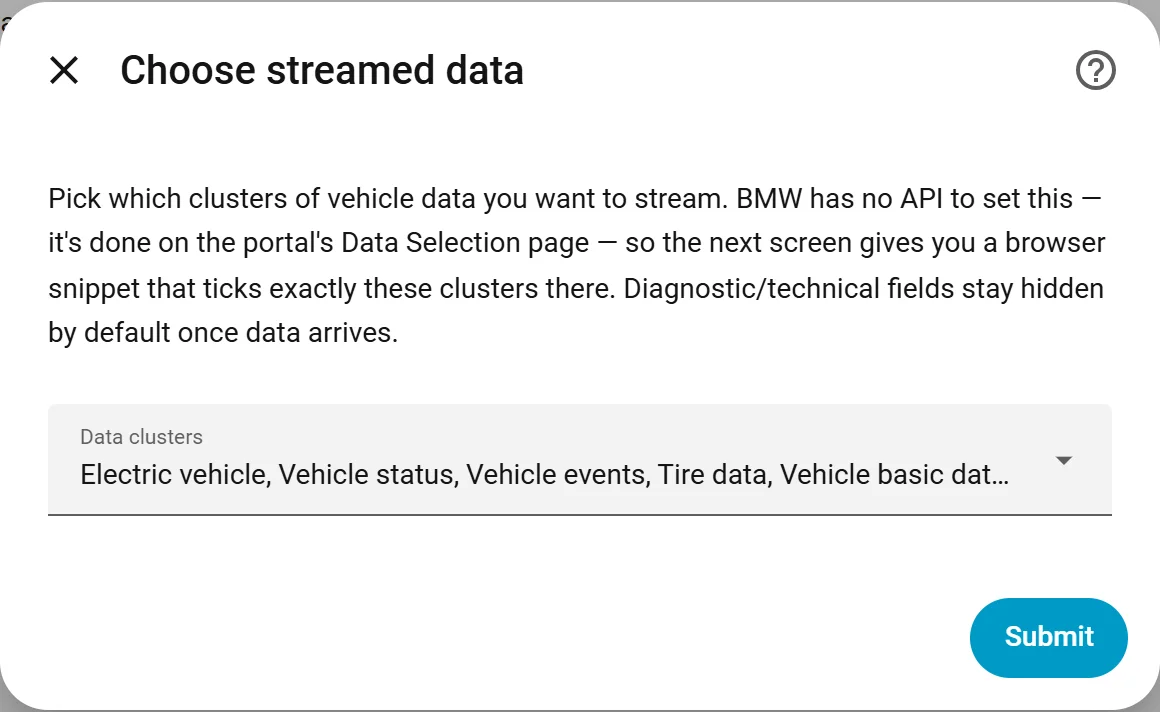
Pick the clusters you want (Electric vehicle, Vehicle status, Tire data, …). The defaults are a sensible starting set; your choice is remembered and the picker re-opens pre-filled next time.
-
The next screen links to the activation page. Drag the Activate BMW data button to your bookmarks bar if it isn’t there yet.
-
In the BMW portal, open the vehicle’s BMW CarData page and press Change data selection (Datenauswahl ändern) under CarData Stream:
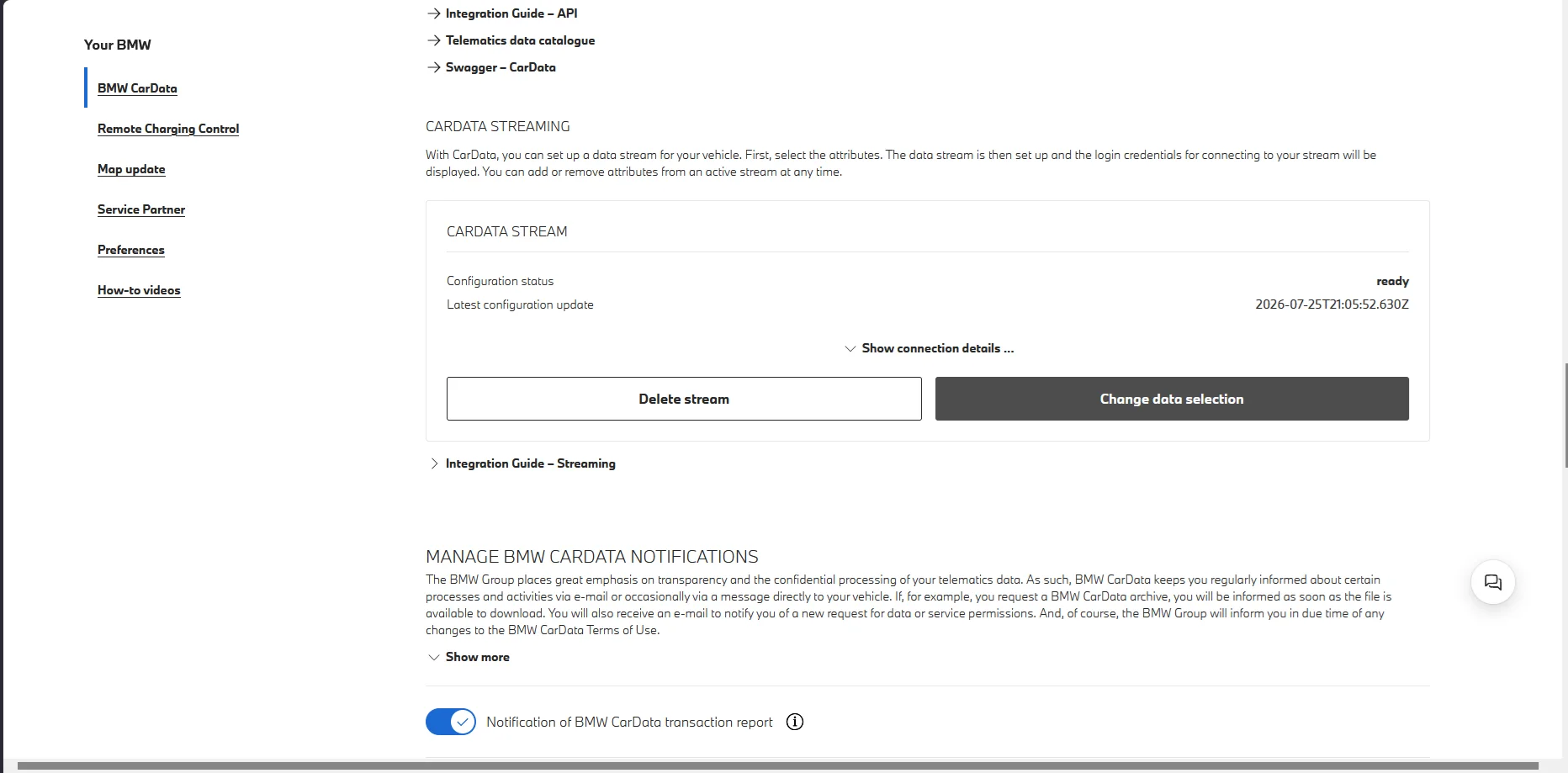
On that stream-setup page, click the Activate BMW data bookmark. It turns on the fields of your chosen clusters, all in your own browser.
-
Back in Home Assistant:
- on an https Home Assistant the dialog continues on its own;
- on an http Home Assistant, press Copy in the box the activator shows and paste the short result into the field.
A confirmation says how many fields are now streaming. Press Submit. (During first-time setup only: if you already ticked the fields in the portal yourself, leave the result box empty and press Submit to finish.)
-
Trigger something in the MyBMW app (lock/unlock) to nudge the car into sending its first update.
Widening or narrowing later#
Re-run this any time from Configure → Choose streamed data — the same picker and the same bookmarklet.
Additive: the activator adds the chosen clusters to your live stream; it never removes a field you already stream. To stop streaming a field, untick it under Data Selection in the portal.
Requesting per-descriptor streaming scopes instead of a portal selection is rejected by BMW — see stream-scope-investigation.md. The full field-per-cluster breakdown lives in telematics-fields.md.
Which clusters power which features#
Some derived features need specific clusters in the stream:
- Extrapolated state-of-charge helpers need the Electric vehicle
cluster — specifically
vehicle.drivetrain.batteryManagement.header,vehicle.drivetrain.batteryManagement.maxEnergy,vehicle.powertrain.electric.battery.charging.power, andvehicle.drivetrain.electricEngine.charging.status. - Charging history, cost and battery health need charging power from the Electric vehicle cluster.
- Charging Cost per 100 km additionally needs the odometer (Vehicle status cluster).
- Trips are reconstructed from live GPS in the stream.
Did it work?#
If you enabled a cluster but no entities appeared, run the
bavariandata.get_coverage_report service (or Configure) — it compares
the descriptors your selected clusters should deliver against those that have
actually arrived, and lists any missing ones. It answers “is it my selection, my
car, or a bug?” and spends no API quota. See
Services reference.
Don’t be alarmed by a long list: every cluster covers BMW’s whole fleet, so each car delivers only part of it. If a cluster you selected sends nothing at all for 7 days, a warning appears under Settings → Repairs — that is the case worth re-checking the Data Selection for.
If that one cluster is still empty after 30 days while everything else keeps arriving, the integration stops treating it as a gap: your selection evidently saved, so the fields just aren’t in your car. The warning clears and the cluster is listed as not applicable instead.
Some fields never arrive on the stream#
BMW’s catalogue marks each field with whether the MQTT stream can carry it, and
49 of 295 cannot — tire diagnosis, the vehicle image, state of health,
Condition Based Servicing, door-lock status and the lifetime-consumption
counters among them. These are REST-only: they are never requested on the
stream, so an empty entity for one of them is not a gap in your Data Selection
and the coverage report will not flag it. Fetch them with the matching
bavariandata.fetch_* service (Services reference),
minding the 50-calls-per-day quota.
The Stream column in telematics-fields.md tells you which is which, field by field.
One last step: put the card on a dashboard#
Your entities exist now, but BavarianData does not create a dashboard of its own — nothing new appears in the sidebar. Open any dashboard, choose ✏️ Edit → ➕ Add card, and pick BavarianData Card; it finds your vehicle by itself.
Done! The dashboard card covers the other views — charging history, battery health, trips, the map, tires and closures.
Which car do you drive? BavarianData is built and tested against exactly one vehicle — an i5 eDrive40 — so which descriptors your model streams is something we genuinely cannot find out on our own. If you made it this far, it would help a lot to hear your model, roughly how many entities showed up, and whether the one-click activator worked in your browser. Tell us in Discussions →